

Match this symptom
The world rolled back, loads as new, reports a failed save or failed backup copy, or no longer matches the expected player and base progress.
The answer first
Stop the server, preserve the current state as evidence, identify a backup from before the loss, and restore the complete matching save set while the process is stopped. Never restore directly over the only remaining copy.
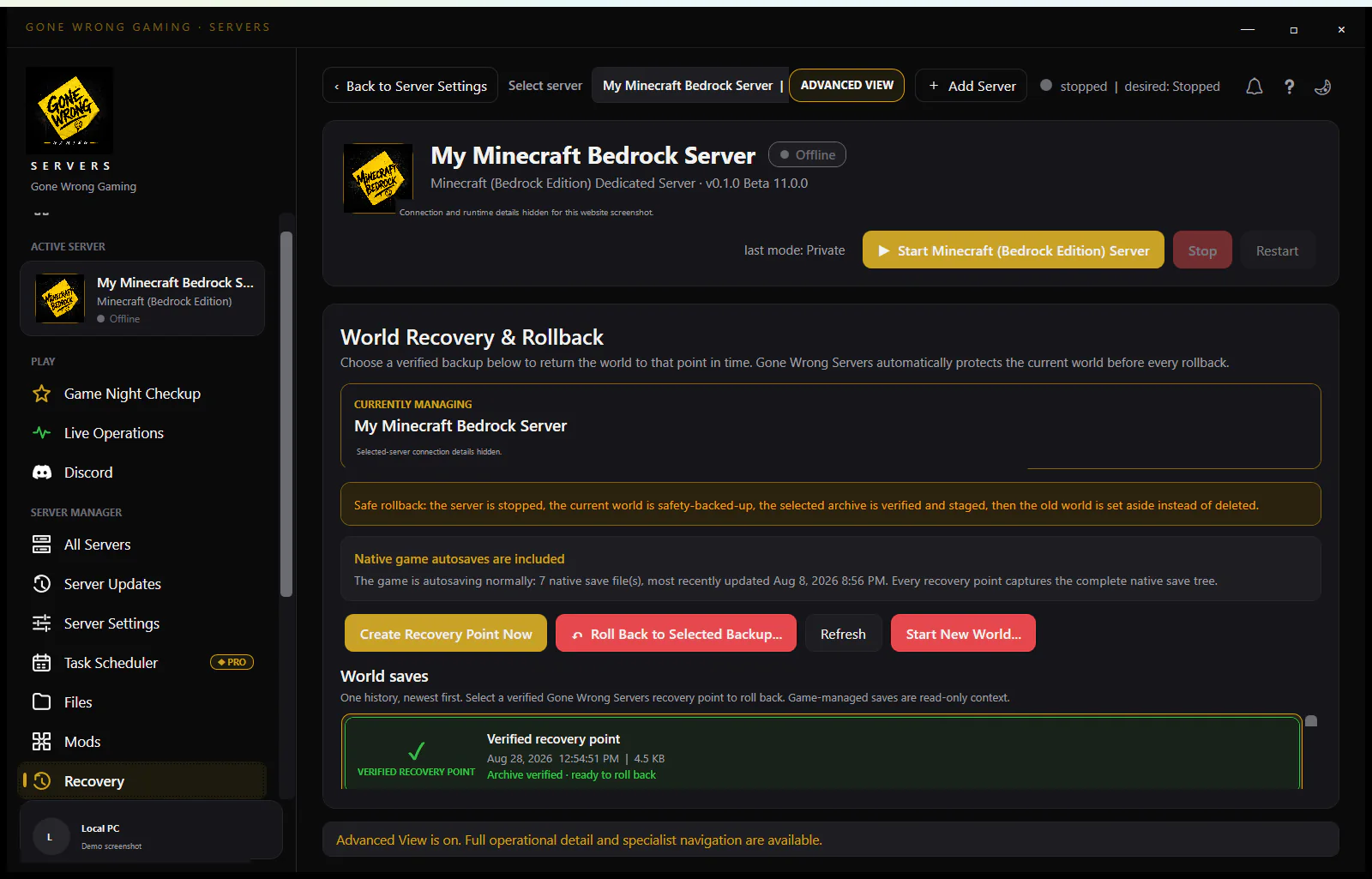
Build backups that can actually restore
- Back up the complete save tree, not only one level file. World, player and metadata files must remain from the same point in time.
- Store at least one copy outside the server installation so an update, reinstall or disk error cannot remove both.
- Use names that include date, time, game version and whether the server was cleanly stopped.
- Test a copy-based restore before an emergency. A backup job succeeding is not proof that the recovered server will load.
Use Palworld's backup controls intentionally
Pocketpair documents bIsUseBackupSaveData and retention controls for automatic save-data backups. Automatic retention is useful, but it should complement an external copy rather than become the only recovery plan.
- Keep several recent points so a delayed corruption is not copied into every remaining backup.
- Keep one longer-term known-good copy after major milestones.
- Monitor disk space; a full disk can break both saving and backup creation.
Recovery procedure
- 1Stop the server and confirm the process is no longer writing.
- 2Copy the current damaged or unexpected save tree to a quarantine folder. Do not delete it.
- 3Select a backup from before the first observed loss and copy the complete matching save set into the verified active save location.
- 4Start privately and join with one account. Verify the expected world, base, inventory and player identity.
- 5If the result is wrong, stop again and try the next known-good point. Do not mix player files from one timestamp with a world from another unless a documented recovery case requires it.
After recovery
Create a new protected backup of the recovered state, document which point worked, and investigate the trigger before resuming automatic updates or mods. Preserve the quarantined state until the incident is fully understood.
Choose a recovery point from evidence, not just its date
Compare each candidate's game build, world identifier, complete directory size, player-file count, and last known in-game event. The newest archive is not automatically the safest if corruption or an unwanted reset occurred before it was created. Pocketpair's rolling backup controls add useful time points, but an external stopped snapshot provides the configuration and provenance needed to understand them.
After a candidate loads, verify more than one base or player. Check guild ownership, inventories, fast-travel or progression state, and a recent world change, then run the documented save command and clean shutdown. A second private start is the acceptance test. Record the selected timestamp and lost-progress window for players, and keep at least one older known-good point until the recovered server has completed normal sessions.