
Match this symptom
A Steam Enhanced client sees a different build, cannot join after an update, or the server behaves as if an old build override is still active.
The answer first
Leave the world untouched. Stop normally, copy the complete ConanSandbox/Saved tree, identify whether the installed tool is Stable Enhanced rather than Legacy or a beta server, then align client/server builds and remove only the stale BuildIdOverride keys named in official troubleshooting.
Record exactly what is running
- 1Save through the current admin path, close normally, and wait for the server process to exit.
- 2Copy the full Saved tree and preserve the first mismatch log.
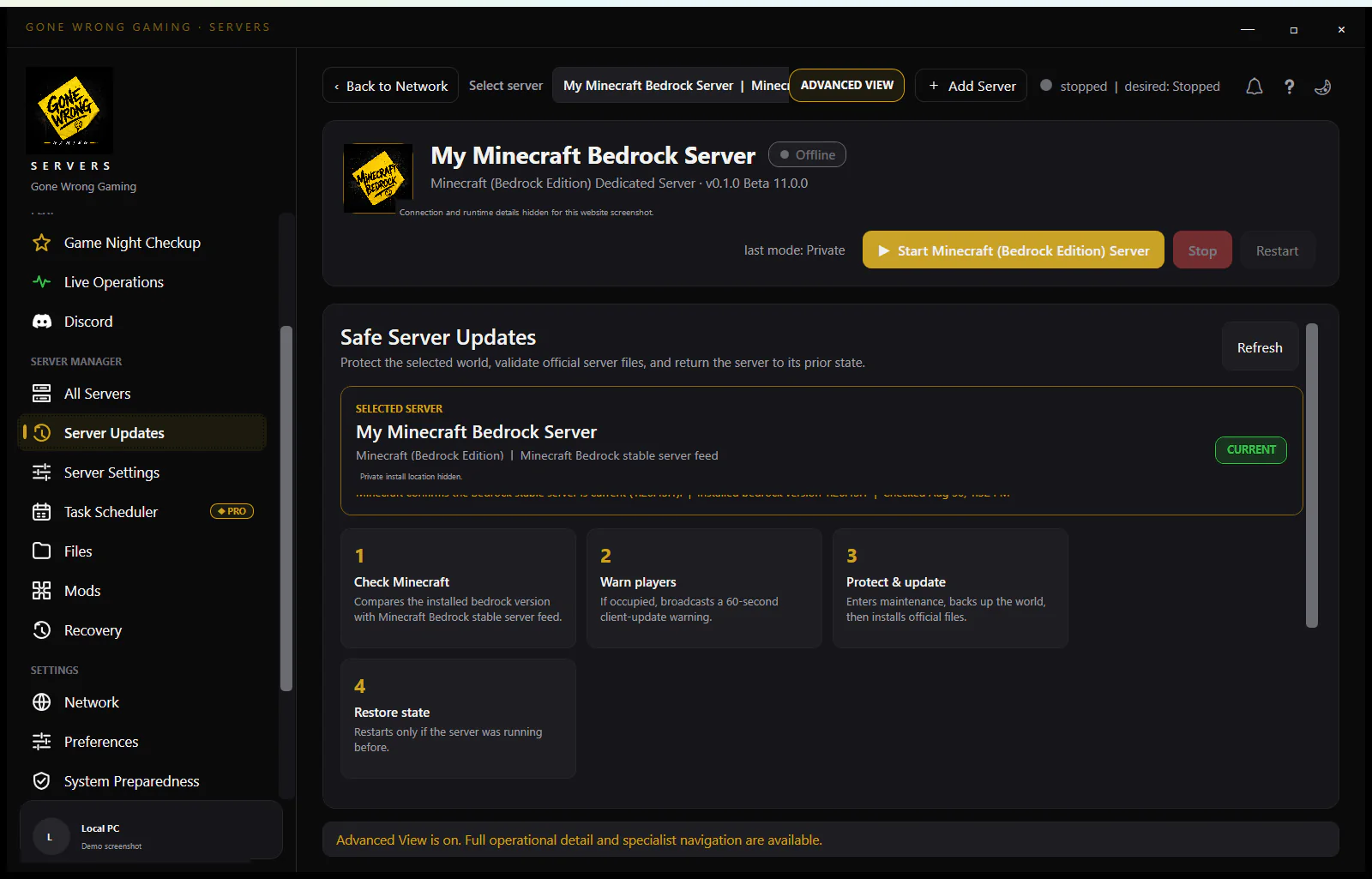
- 3Record the Steam application/tool name, branch, build, executable path, client build, and whether a separate beta tool is installed.
- 4Confirm that the client is Enhanced Steam rather than Legacy UE4, console, Epic, or Microsoft Store.
Remove documented stale build overrides carefully
The Enhanced troubleshooting guide calls out old bUseBuildIdOverride and BuildIdOverride entries in Engine.ini. Back up that file, remove only those obsolete entries, and leave unrelated network or engine configuration unchanged for this test.
Align current Stable binaries
- 1Stop every server process so SteamCMD is not validating files in use.
- 2Update the intended Stable Enhanced server installation rather than a Legacy or beta folder.
- 3Update the Steam Enhanced client and restart Steam so pending content is applied.
- 4Start privately and verify the log reports the expected build before joining.
Check the platform boundary before chasing ports
At the reviewed date, Enhanced multiplayer is Steam Enhanced. Xbox, PlayStation, Epic, Microsoft Store, and Legacy UE4 clients cannot join this server even if UDP forwarding is perfect. A platform-generation mismatch needs a compatible Legacy server, not more open ports.
Validate the repaired server
- Matching build shown by client/server evidence
- Correct game_0.db world, clans, characters, and structures
- Current Enhanced-compatible mod set
- Normal save/close and second startup before public reopening
Use build evidence to identify the mismatched layer
Capture the Steam app manifest/build for the server folder and the build reported by the Enhanced client rather than relying on a shortcut name. A stale service can keep launching an older installation after SteamCMD successfully updates another directory. Compare the running executable path with the folder that was validated and check its modification/build evidence before touching Engine.ini again.
If removing the documented override keys changes the advertised build, preserve the before/after INI and startup logs for the maintenance record. If it does not, restore the backed-up INI and investigate branch/tool selection. Do not solve a version mismatch by copying a Legacy executable into the Enhanced tree or by opening game_0.db under an unverified beta binary; executable and database generation must remain an intentional compatible pair.