

Match this symptom
BDS starts normally after an import, but players enter a new seed or the expected world/add-ons/player state is missing.
The answer first
Stop the server before anyone builds in the new seed and preserve both folders. The folder directly under worlds/ must itself contain level.dat, levelname.txt and db/, and server.properties level-name must match that folder name exactly, including case. If a ZIP or host backup added wrapper directories, move only a copy of the actual world root—not individual LevelDB files—then validate identity, packs and a restart.
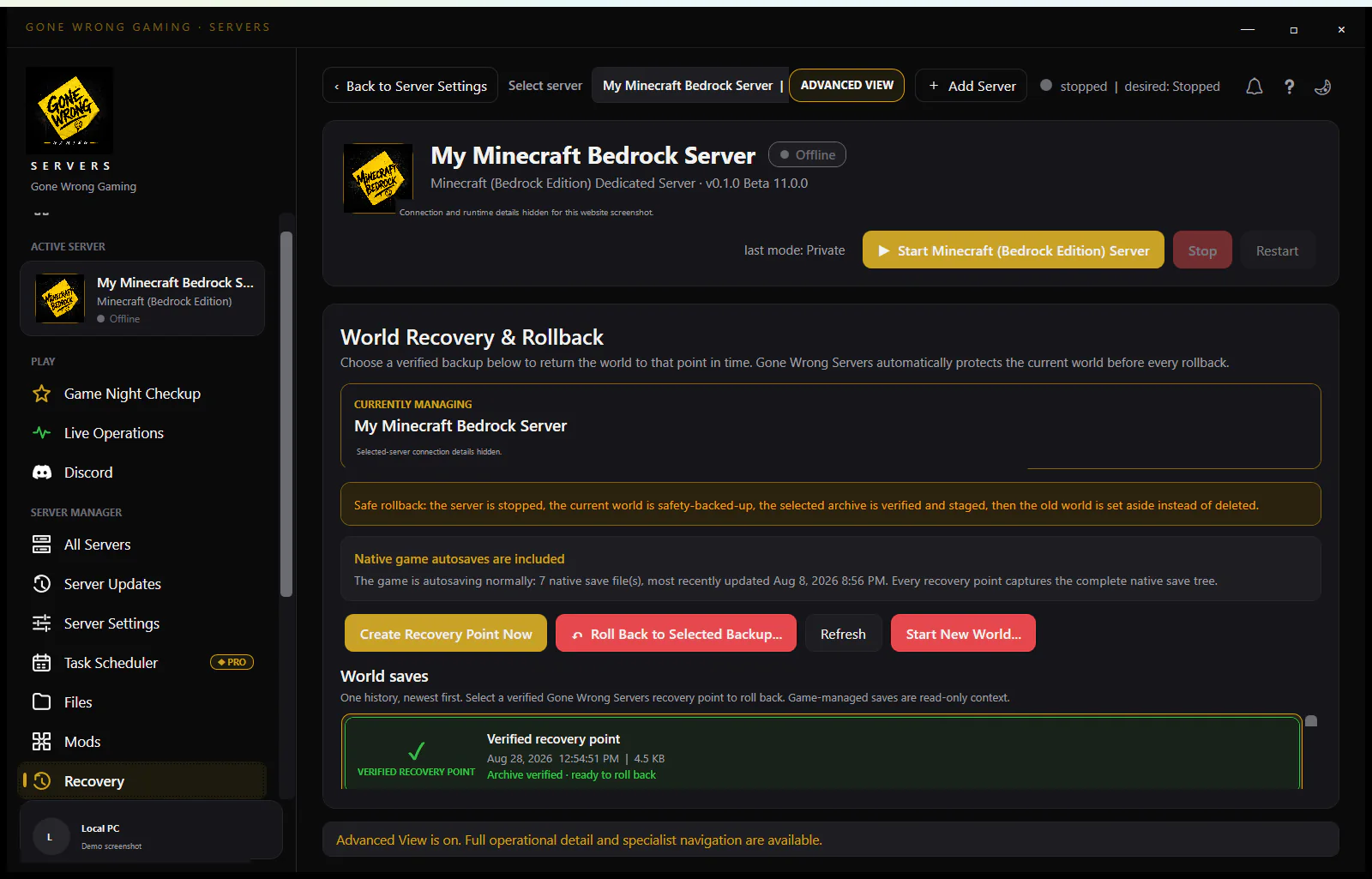
Stop and separate the three states
- 1Enter stop and wait for BDS to exit; do not copy the active LevelDB database while it is writing.
- 2Keep the untouched source archive/folder as evidence and rollback material.
- 3Keep the newly generated world separately if anyone accidentally played in it.
- 4Make a third working copy for path correction and validation.
Identify the actual Bedrock world root
The correct source level is the directory that directly contains level.dat, levelname.txt and db/. It can also contain level.dat_old, behavior_packs, resource_packs and world pack-reference/history JSON files.
- If worlds/my-backup/another-folder/level.dat exists, another-folder is the likely world root—not my-backup.
- Do not copy only level.dat or only db/; the world and its pack/player-linked state form one unit.
- An .mcworld is an archive of world contents. After extraction, do not leave an extra outer archive-name directory between the selected folder and level.dat.
- A Java world commonly has a different Anvil layout and is not a direct BDS import.
Make level-name and working directory agree
- 1Place the corrected copy at <BDS root>/worlds/<chosen-folder-name>/.
- 2Open <BDS root>/server.properties and set level-name to exactly the chosen folder name, including letter case.
- 3Confirm the service starts bedrock_server.exe with <BDS root> as its working directory; otherwise it can read another relative worlds/ folder.
- 4Start privately and inspect console output before allowing outside players.
Restore the complete pack relationship
- Keep world-specific behavior_packs/resource_packs and world_behavior_packs.json/world_resource_packs.json with the world.
- Copy required shared root packs separately without replacing official BDS binaries.
- Check manifest UUIDs, versions and dependencies; enable content logging for the first actionable pack error.
- Do not install Java plugin/mod JARs into BDS as an attempted repair.
Read startup output as a path decision tree
Start the corrected copy privately and save the complete console output. A newly generated seed with an otherwise normal ready message usually means BDS accepted a different level-name or working directory; it is not evidence that the source LevelDB files are empty. A pack dependency or manifest error after the intended world is selected is a separate content branch and should be repaired without changing which world folder is active.
If BDS cannot open or parse world data, stop after preserving the exact error and the failed working copy. Do not repeatedly launch the untouched source, mix files from the generated world into it or delete level.dat_old. Make a new working copy, verify source completeness and test against the BDS version expected by that backup.
- Expected seed but missing packs: inspect world pack-reference files, root pack payload and content logs.
- New seed and writes in a different folder: correct level-name/service working directory.
- Existing terrain but new player identity: verify the expected authenticated account and that the whole source state was copied.
- Java-style region/DIM folders without Bedrock db/: stop and classify the source as a conversion job, not a direct import.
Use an acceptance test, not only process start
- 1Join as an existing player and verify inventory, spawn and a known structure/container.
- 2Visit every used dimension/location and confirm the expected pack stack.
- 3Use stop, restart and confirm the same world/player state returns.
- 4Only after that copy passes should the production path switch; keep the original source unchanged.
Run a state matrix before promotion
- 1World selection: verify a unique known landmark and seed-dependent location rather than trusting the displayed server name.
- 2Player continuity: join with a known existing Xbox identity and inspect inventory, spawn/position and permissions.
- 3Content continuity: exercise one representative behavior and resource pack feature, then inspect the first actionable content-log error if it fails.
- 4Persistence: make a harmless marked change, stop normally, restart and prove the change and player state remain in the same selected folder.
- 5Network acceptance: repeat one LAN and one external join only after the private state tests pass, so reachability cannot hide a wrong-world import.
Use LevelDB writes to prove the selected world
Before the private start, record the candidate world's level.dat and db directory timestamps and the newly generated world's equivalent values. Make one harmless, recognizable change in the imported copy, then use stop and compare which directory received writes. If BDS updates another worlds folder, the working directory or level-name still points elsewhere even if the server list displays the expected name.
Do not copy individual changed LevelDB files back into the source to merge timelines. Keep the source archive immutable, repeat path correction on a fresh working copy, and accept the import only when the intended folder receives consistent writes, an existing player identity loads, required packs resolve, and the same state survives a second start.
Prevent wrapper and partial-backup imports
For every accepted backup, record the folder that directly contains level.dat and db/, the BDS build, exact level-name and a manifest of required world/root packs. Store the archive outside the installation and periodically restore it to a separate path. A backup job that reports success but has never reproduced an existing player, pack stack and restart is only a copy, not proven recovery material.
- Preserve the provider export exactly as received before restructuring a working copy.
- Update import detection when Microsoft changes the documented world or pack structure.
- Reject an archive that contains only replaceable BDS binaries and no identifiable world root.
- Never merge two independently played LevelDB timelines by selecting whichever individual files have newer timestamps.