

Match this symptom
Joining reaches BDS but returns “Outdated Client” or “Outdated Server,” often immediately after a client or dedicated-server update.
The answer first
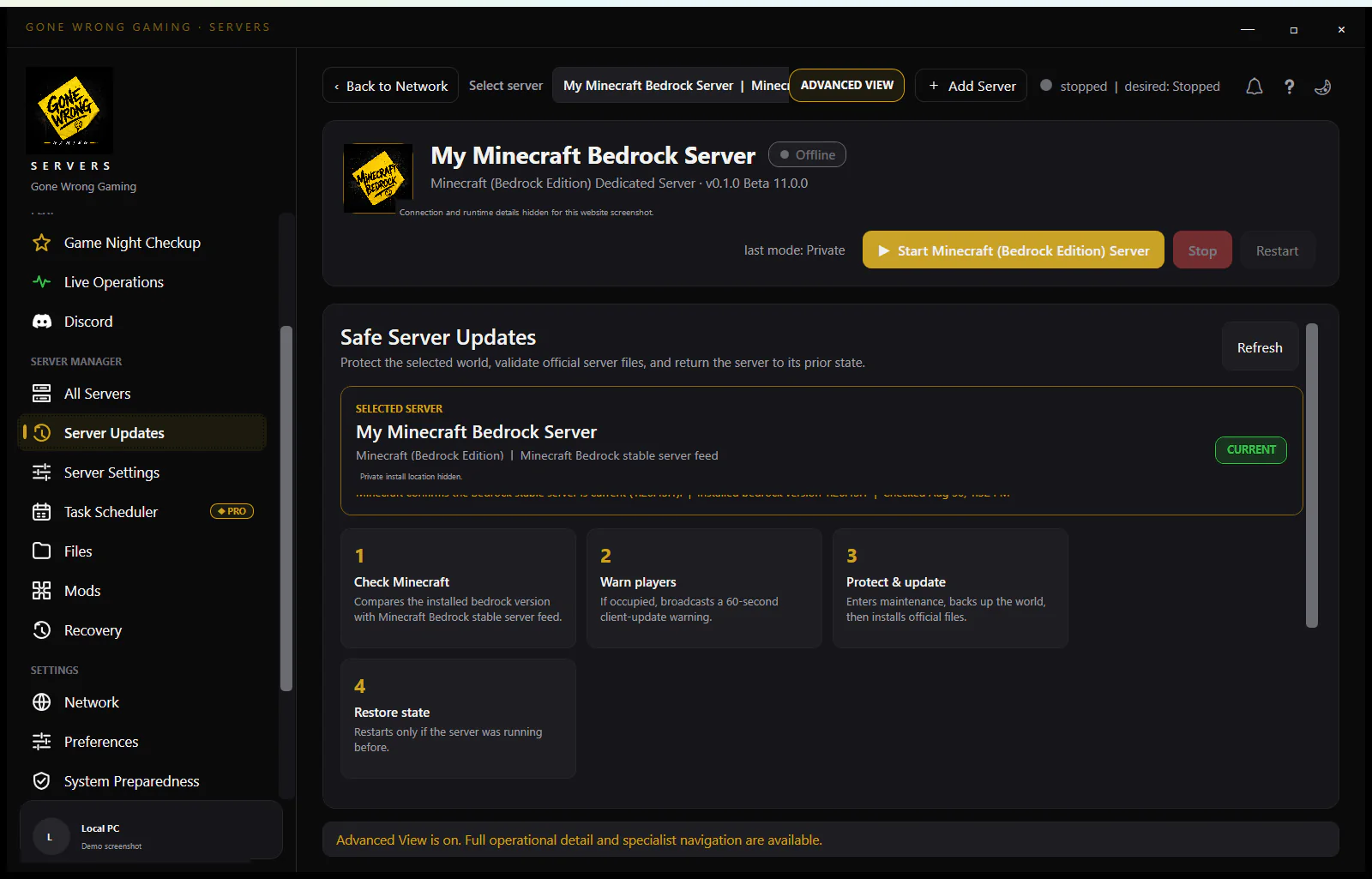
This is a protocol/version mismatch, not a router failure. Record the exact client channel/version and BDS version, then update the side named by the message through its official channel. Before replacing BDS, enter stop, back up the complete world and state, and stage the new official ZIP in another folder; Bedrock patch releases are not guaranteed to share a protocol.
Read the error literally
- Outdated Server means the client expects a newer protocol than BDS supplies; update the server path.
- Outdated Client means BDS expects a newer protocol; update that client through its platform channel.
- A Preview client needs the corresponding Preview server lane, not the retail BDS ZIP.
- A timeout has no version text and belongs in reachability diagnosis instead.
Capture exact versions before changing anything
- 1Record whether the client is retail, Preview or beta and capture its full displayed version.
- 2Capture BDS startup/version output and the ZIP/source used to install it.
- 3Check another joining device only if it uses a known channel/version; an auto-updated console may differ from a PC left pending restart.
- 4Do not assume two releases that share 1.26 in their name use the same protocol.
Update BDS with a recovery boundary
- 1Warn players, enter stop and wait for bedrock_server to exit.
- 2Copy the complete active worlds/<level-name> folder, server.properties, allowlist/permission state and required packs/config outside the installation.
- 3Extract the current official ZIP into a different empty versioned directory and run/stop it once.
- 4Move a copy of the world/state into staging, compare current properties, then test locally before switching the live path.
Validate more than the first successful join
- Confirm an existing player and inventory rather than accepting a newly generated world.
- Test any behavior/resource packs against the updated client.
- Run a clean stop/restart and verify the same world returns.
- Repeat the join on every device family the public page promises because platform releases can arrive on different schedules.
Separate protocol evidence from neighboring failures
A named Outdated Client or Outdated Server response means the request reached software capable of evaluating protocol compatibility. Preserve that wording. A connection timeout, Microsoft account sign-in failure, allow-list denial or pack-download failure may happen during the same release week, but none establishes which side has the older protocol.
Read the BDS startup version from the process you actually launched, not only the ZIP filename or a panel label. On the client, capture the complete version after fully closing and reopening the game so a pending storefront update is not confused with the active process. Compare channel as well as digits: retail, Preview and beta results belong in separate rows.
- Outdated Server: stage a current matching BDS package; protect the live world before migration.
- Outdated Client: update or restart that client through its platform’s supported channel.
- Mixed results on two devices: record both builds; do not assume the server is switching protocols between attempts.
- No explicit version response: return to reachability or authentication evidence instead of forcing an update diagnosis.
Rollback means restoring matched state
Do not aim an older BDS binary at a world already written by the new build. Restore the complete pre-update snapshot into a clean path. Even then, an older server may be unusable when players’ platforms no longer offer its matching client, so the durable objective is protected world data and a tested forward fix.
Use multiple device results to identify release-channel drift
Build a small matrix of each device's platform, retail/Preview channel, complete version, and exact error against the recorded BDS build. If one auto-updated console reports Outdated Server while another pending-update PC joins, the two client results are not contradictory; they show staged storefront rollout or a client restart still pending. Do not downgrade the world to satisfy the older device.
After staging the current matching server, keep public access closed until at least one existing player from every advertised device family has joined and a clean stop/restart succeeds. Save the BDS ZIP name/source and startup version beside the recovery snapshot. That evidence makes the next protocol mismatch diagnosable without guessing from a shortened marketing version or relying on a launcher that has not restarted.
Close the incident with a release-readiness record
Record the BDS build that passed, the client builds/channels tested, world snapshot identifier, pack versions and the stop/restart result. Do not update the article’s reviewed date merely because a download page changed; recheck the official package, reproduce the mismatch branch and confirm the staged world still opens before describing the new build as verified.
- Retain the last known-good complete state until the updated world has survived ordinary play and another clean recovery copy.
- Schedule a version check before planned sessions when console/mobile clients auto-update outside the server owner’s control.
- Keep Preview testing isolated from the retail community world and access list.
- If storefront rollout is incomplete, communicate the tested compatibility matrix instead of promising that every device can join immediately.